The Nomosis Viewer
Choose the right workflow to visualize, analyze, review, and present molecular structures and trajectories.
The Nomosis Viewer is the scientific workspace for molecular structures and simulations. Start with a guided path or move directly to the capability that matches your current scientific goal.
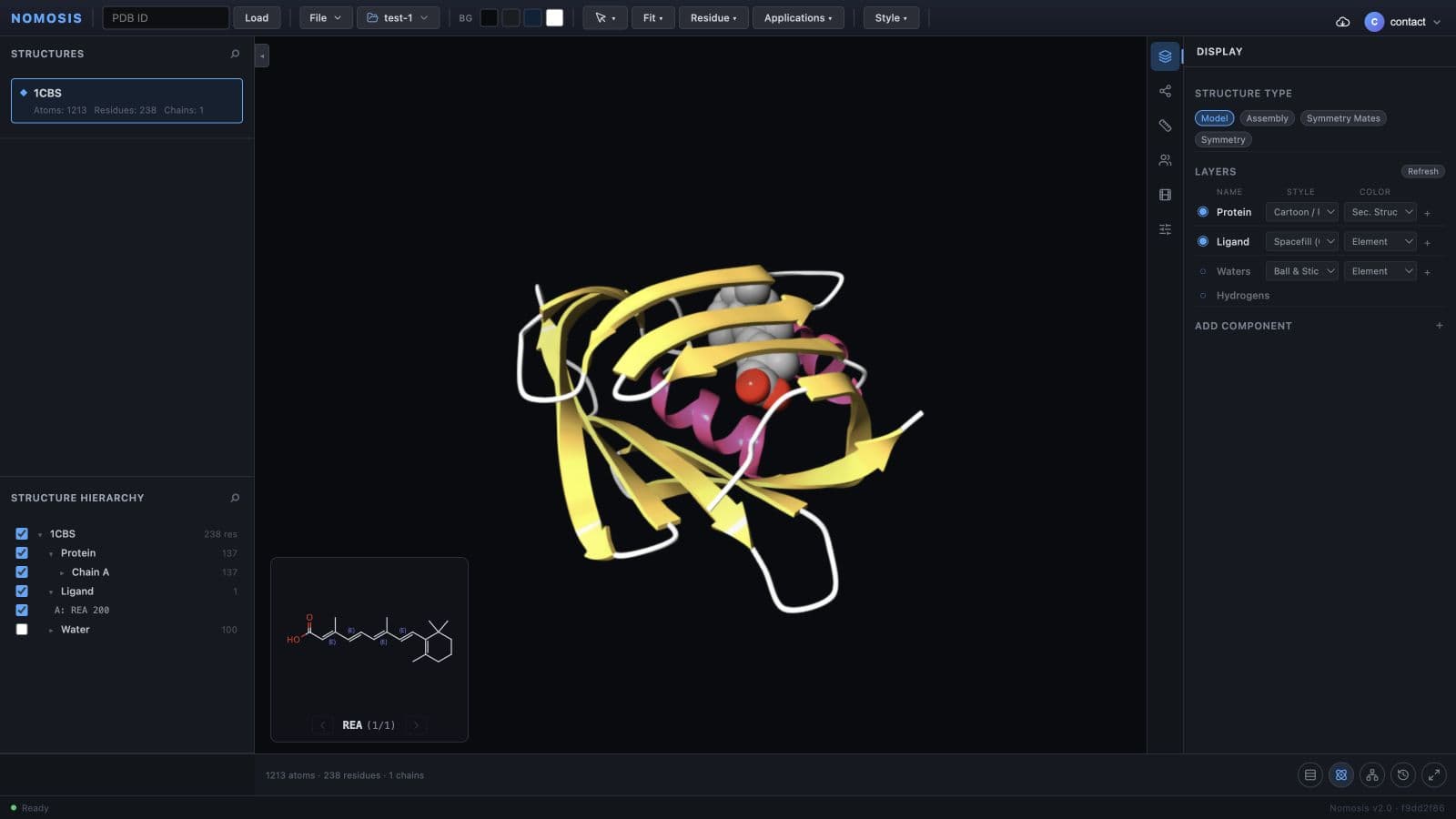
Your scientific workspace
From molecular data to a clear, reviewable scene
Load a structure, establish the visual hierarchy, inspect the scientific question, and preserve the result for the next review.
Choose your path
These three guides establish the core Viewer skills. Each one finishes with a visible result you can verify before moving to more advanced analysis.
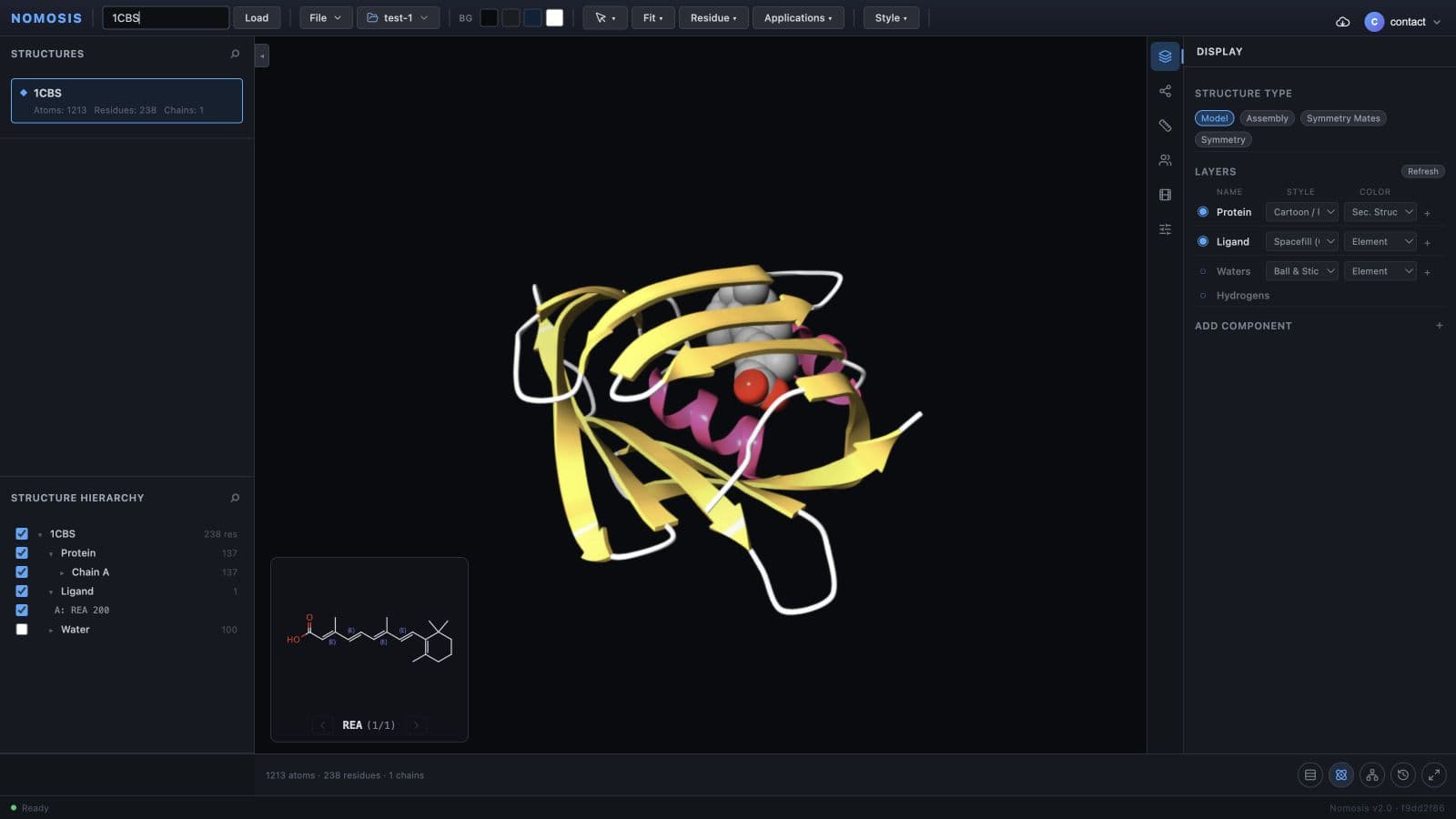 Start here
Load molecular data
Choose the correct path for a structure, MD trajectory, or docking result and verify the loaded state.
Open guideVisual clarityBuild a readable molecular scene
Choose representations and colors that separate the protein, ligand, and supporting context.
Open guide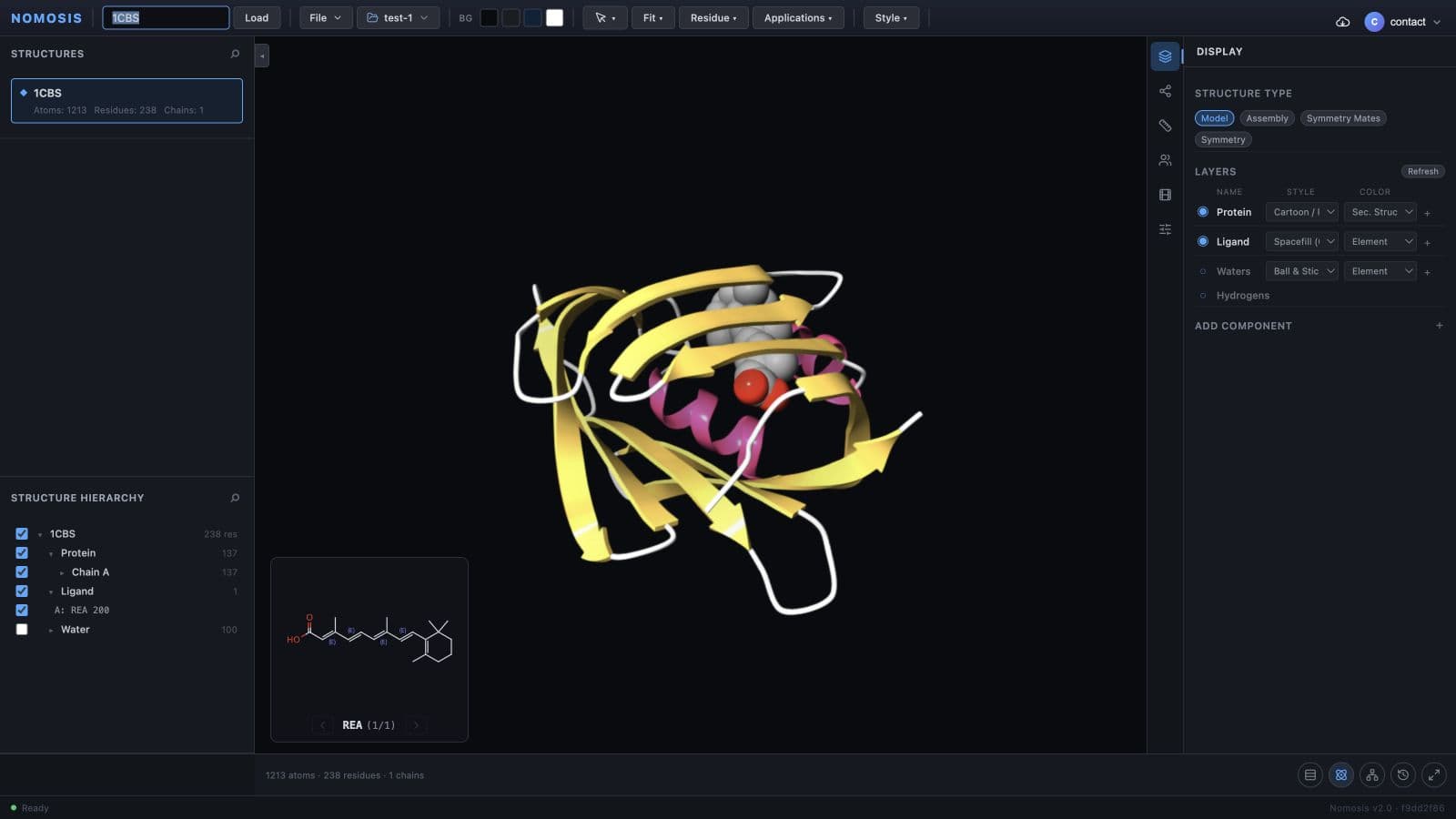 Precise control
Navigate components and hierarchy
Find chains, residues, ligands, and solvent, then control exactly what is visible.
Open guideKeep the Viewer predictable
Most confusion comes from changing the right setting in the wrong context. Read the Viewer as four connected states:
Project
Where project-scoped work belongs
Loaded data
Structures and trajectories in the workspace
Active structure
The item currently targeted by the tools
Scene state
Camera, visibility, styling, and analysis
Before saving or starting a review, confirm both the project in the top bar and the active structure on the left. A correct sign-in does not guarantee that either context is correct.
Analyze structures and simulations
Preserve, collaborate, and present
A reliable review sequence
When a tool is unavailable
The Viewer exposes tools only when the active data supports them:
- Ligand diagrams require a detected ligand in the active structure.
- Trajectory controls and MD analysis require an active trajectory with multiple frames.
- Docking-specific controls require a loaded docking result.
- Save and open actions may require an active project and the relevant project permissions.
When in doubt, reactivate the intended structure, choose Fit → All (reset), and reopen the tool.