Components & Hierarchy
Control protein, ligand, solvent, ions, chains, residues, and custom elements without losing context.
The Viewer organizes every loaded structure in two complementary ways:
- Components are display layers you can style and show or hide independently.
- Structure Hierarchy is the molecular tree you use to find and control chains and residues.
Use components for visual design and hierarchy for precise navigation.
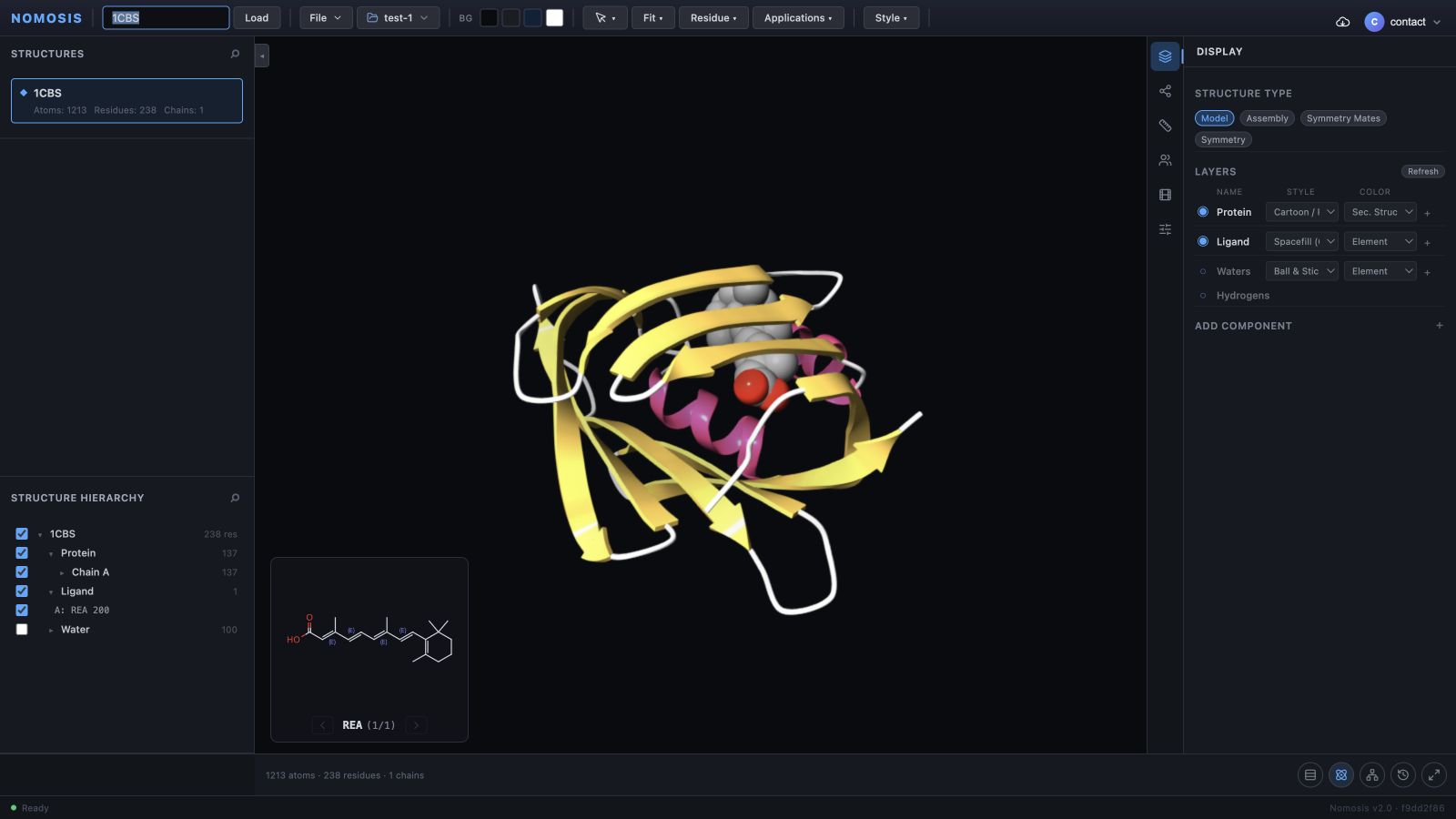
1CBS in two complementary views: Structure Hierarchy on the left identifies molecular
subsets, while Display on the right controls how the visible components are drawn.
A simple rule
Use Structure Hierarchy to answer “which molecular part?” and Display to answer “how should that part look?”.
Guided example: read 1CBS
Start at the top of Structure Hierarchy and move downward:
1CBSis the complete loaded structure.- Protein contains the macromolecule; Chain A identifies its chain.
- Ligand contains one detected ligand,
A: REA 200. - Water contains 100 solvent residues and is hidden in the example scene.
The checked visibility controls show what is currently included in the scene. A hidden checkbox changes visibility only—it does not remove that molecular data.
Component types
| Component | How it appears | Use it for |
|---|---|---|
| Protein / polymer | Created automatically on load | The main macromolecular structure |
| Ligand | Created when a ligand is detected | Bound small molecules and cofactors |
| Water | Created when solvent is present | Water-mediated contacts and solvent context |
| Ion | Created when ions are present | Ionic environment and coordination |
| Custom element | Created from a selection or picked item | Chains, residues, or atoms that need independent styling |
| Duplicate | Created from a component's context menu | A second representation of the same molecular subset |
| Surroundings | Created by a nearby-residue action | Binding-site residues within a chosen radius |
| Metal coordination | Added when coordinating metals are detected | Metal center geometry and coordinating partners |
Automatically created components are part of the loaded structure. Hide them when they are not needed; do not expect them to behave like deletable custom elements.
Use Display for component-level control
In Display, each component provides:
- A visibility control.
- A representation selector.
- A color-scheme selector.
- Contextual actions such as duplicate, hide/show, or delete for supported custom components.
Changing the representation or color of one component does not need to change the others. This is what lets you combine a protein ribbon, an atom-detailed ligand, translucent surroundings, and selected interaction lines in a single scene.
Navigate the Structure Hierarchy
The hierarchy follows this pattern:
Structure
  Protein / Ligand / Water / Ion
    Chain
      Residue
AtomFor example, hide Water as a component for a clean overview, hide a single chain in the hierarchy for an interface comparison, or hide one residue when it obstructs a focused view.
Isolate the ligand without losing context
1CBS is the active row under Structures.A: REA 200.Component visibility versus subset visibility
These controls produce a similar visual result but operate at different levels:
| Control | Scope | Use it when |
|---|---|---|
| Component visibility in Display | The complete component | You want all protein, ligand, water, ion, or a custom element on or off |
| Category visibility in the hierarchy | The complete molecular category and relevant descendants | You are navigating through the molecular tree |
| Chain or residue visibility in the hierarchy | A subset inside one or more visible components | You need precise isolation without hiding the entire component |
Hiding is reversible and does not delete molecular data.
Create a custom element
A custom element gives a selected atom, residue, chain, or entity its own visual controls.
From a picked item
From a multi-selection
Ctrl/Cmd+click to build the selection.Keep the component list purposeful. Roughly 20 to 30 custom elements is a practical upper range for an easy-to-navigate workspace. Prefer a few clearly named scientific subsets over many overlapping elements.
Duplicate a component intentionally
Duplicate a component when you need two simultaneous visual treatments of the same molecular subset, such as a ribbon plus an atomic overlay. After duplicating:
- Give each copy a distinct representation.
- Use opacity or visibility to prevent visual clutter.
- Rename custom copies when their role is not obvious.
- Delete the duplicate when it no longer supports the analysis.