Loading Data
Choose the correct workflow for a structure, molecular-dynamics trajectory, or docking result and verify that the data is ready for analysis.
The Viewer opens three different kinds of molecular data. Choose the workflow first, then confirm the loaded state before changing representations or starting an analysis.
Choose your workflow
 Structure
Open a molecular structure
Load a public PDB entry or a local structure file for visual inspection and analysis.
 Molecular dynamics
Open an MD trajectory
Pair a topology with its compatible trajectory and inspect motion across frames.
 Docking
Open docking results
Load a docking archive, review ranked poses, and investigate binding modes and contacts.
| Workflow | Required input | Ready when |
|---|---|---|
| Structure | PDB identifier or supported structure file | The expected row and molecular components appear under Structures |
| Molecular dynamics | Matching topology and trajectory files | Frame controls appear and separated frames remain structurally coherent |
| Docking | Compatible docking-result ZIP | The receptor, ranked poses, search site, and Docking panel appear |
One reliable rule
Do not start an analysis simply because something is visible in the viewport. First confirm the expected item under Structures, make it active, and choose Fit → All (reset).
Load a structure
Use a PDB identifier for a public entry, or open a supported file from your computer.
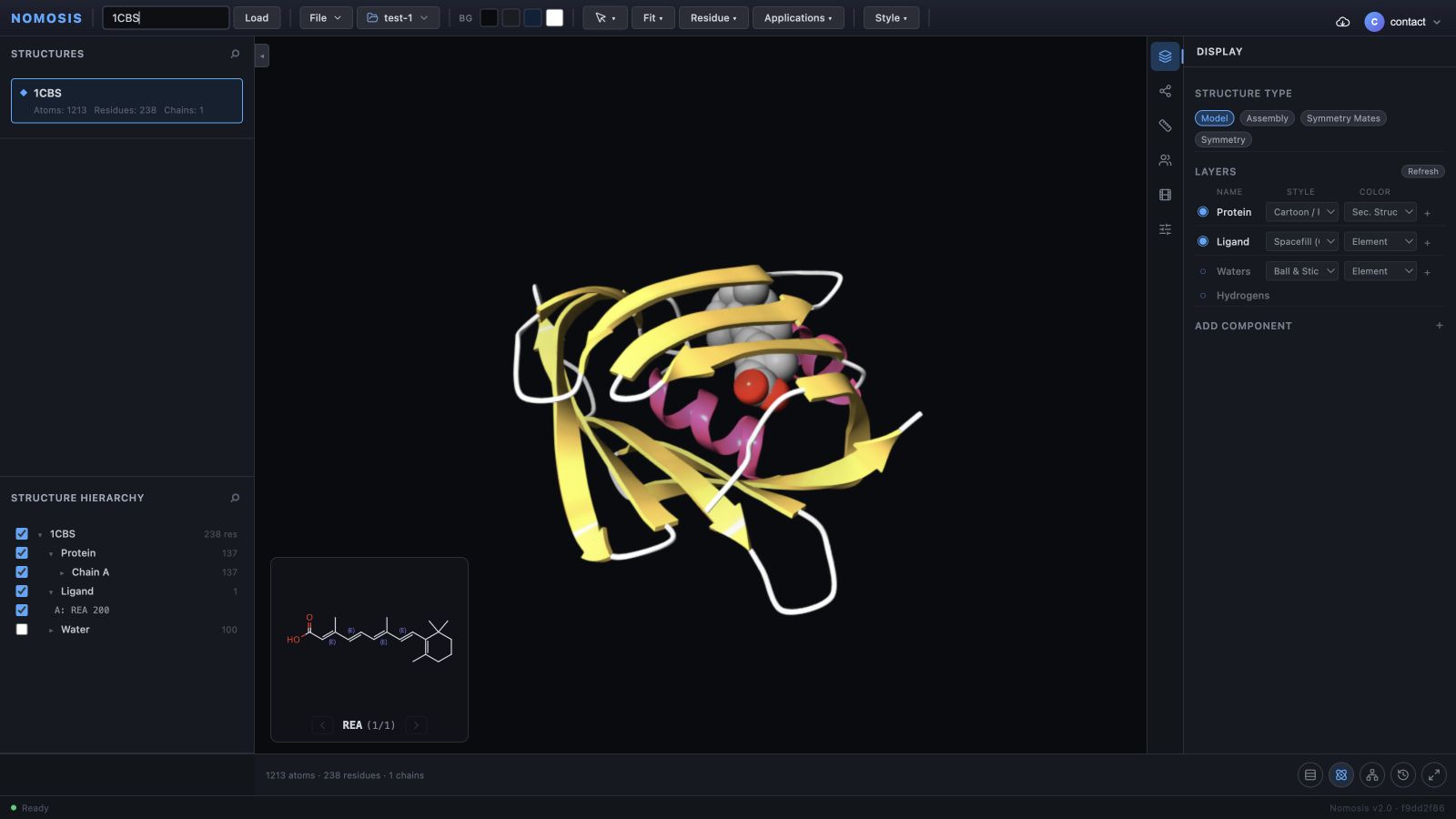
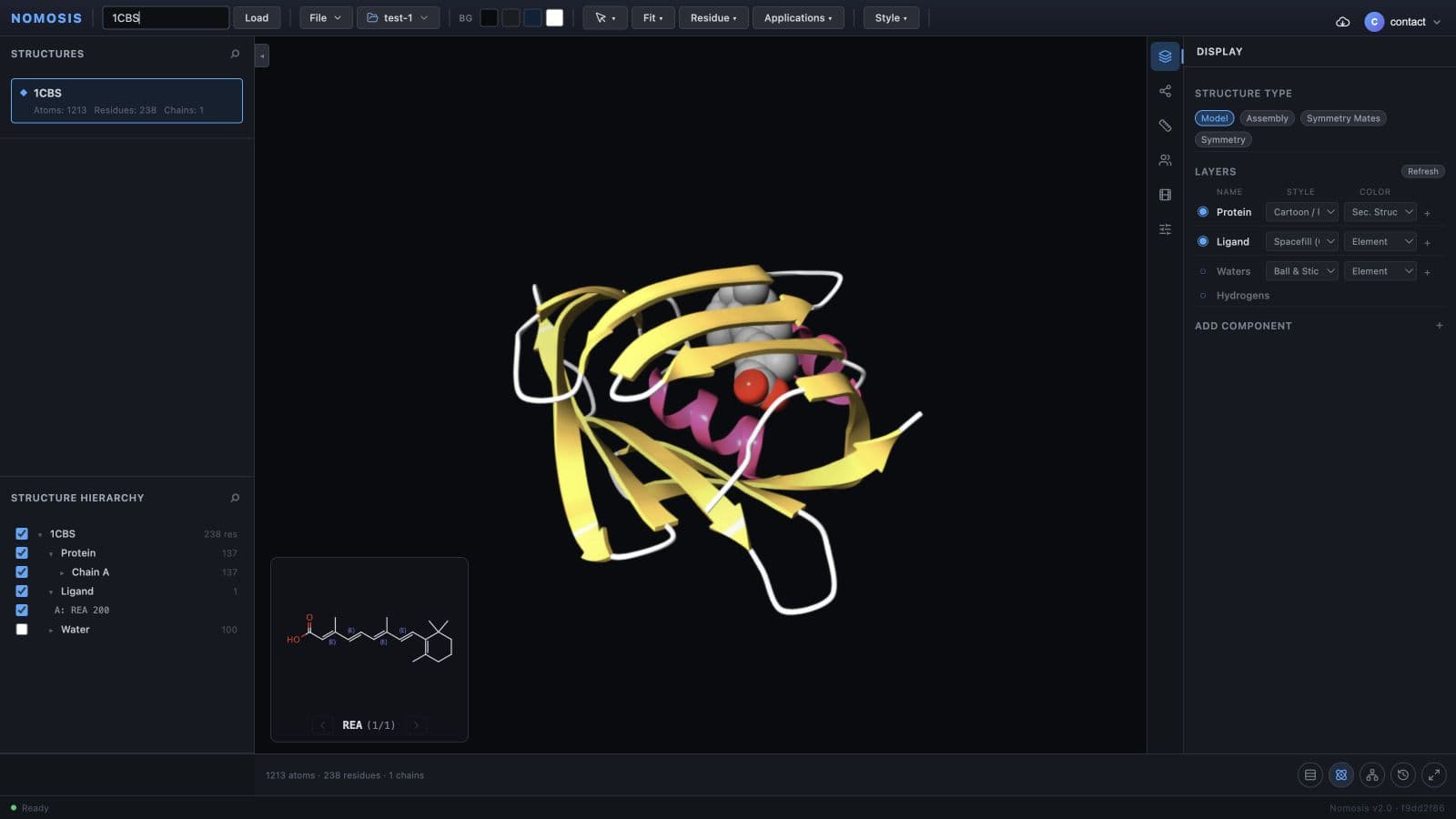
A successful PDB load creates a row under Structures and populates Structure Hierarchy.
1CBS.Common structural formats include PDB, mmCIF, GRO, MOL/MOL2, SDF, and XYZ. See Supported File Formats before opening an unfamiliar format.
Confirm the structure
Check all four conditions before continuing:
- The expected identifier or filename appears under Structures.
- The intended row is active.
- The complete molecular model is visible after Fit → All (reset).
- Expected components such as protein, ligand, ions, or water appear in Display and the hierarchy.
For 1CBS, the initial result contains a Protein, a Ligand named A: REA 200, and
Water. Water can remain hidden during the first overview.
Load a molecular-dynamics trajectory
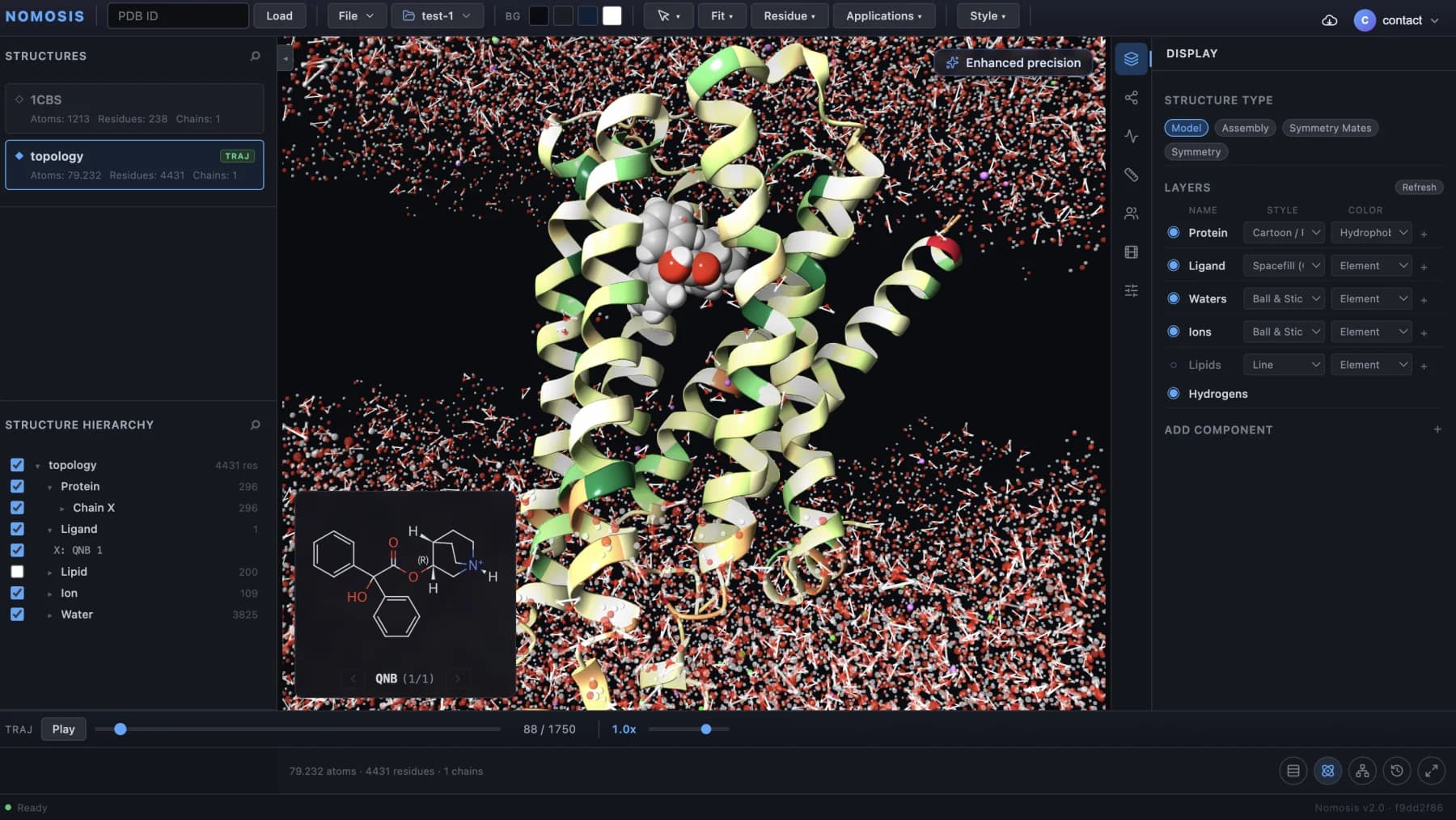
A trajectory is not a standalone molecular structure. It requires a topology that defines the atoms and bonds and a compatible trajectory that supplies coordinates for each frame.
Continue with Molecular-Dynamics Trajectories for pairing requirements, playback, precision, validation, and troubleshooting.
Load docking results
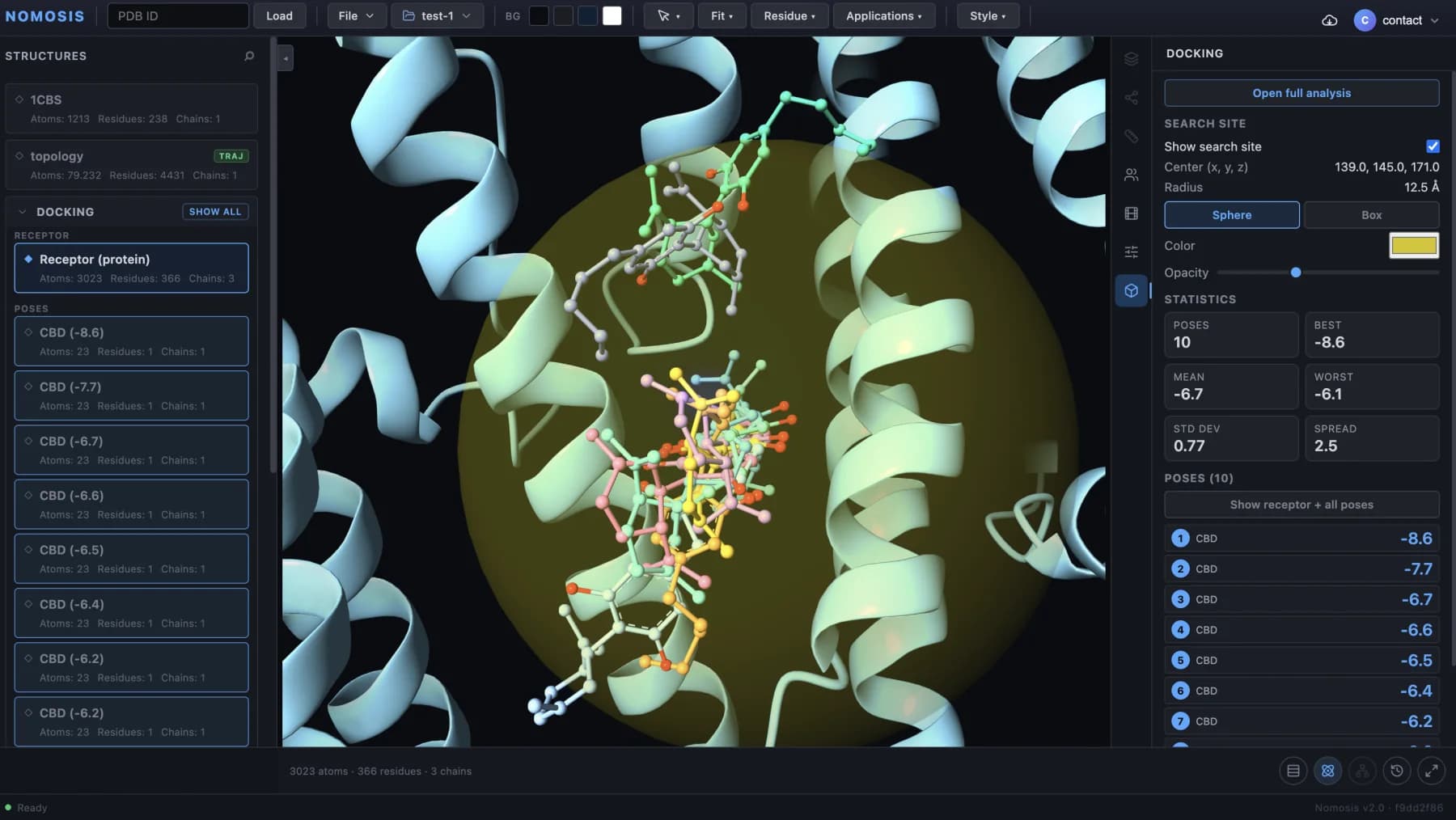
Docking results contain a receptor and multiple ranked ligand poses. Nomosis accepts a compatible ZIP archive and detects the supported docking program automatically.
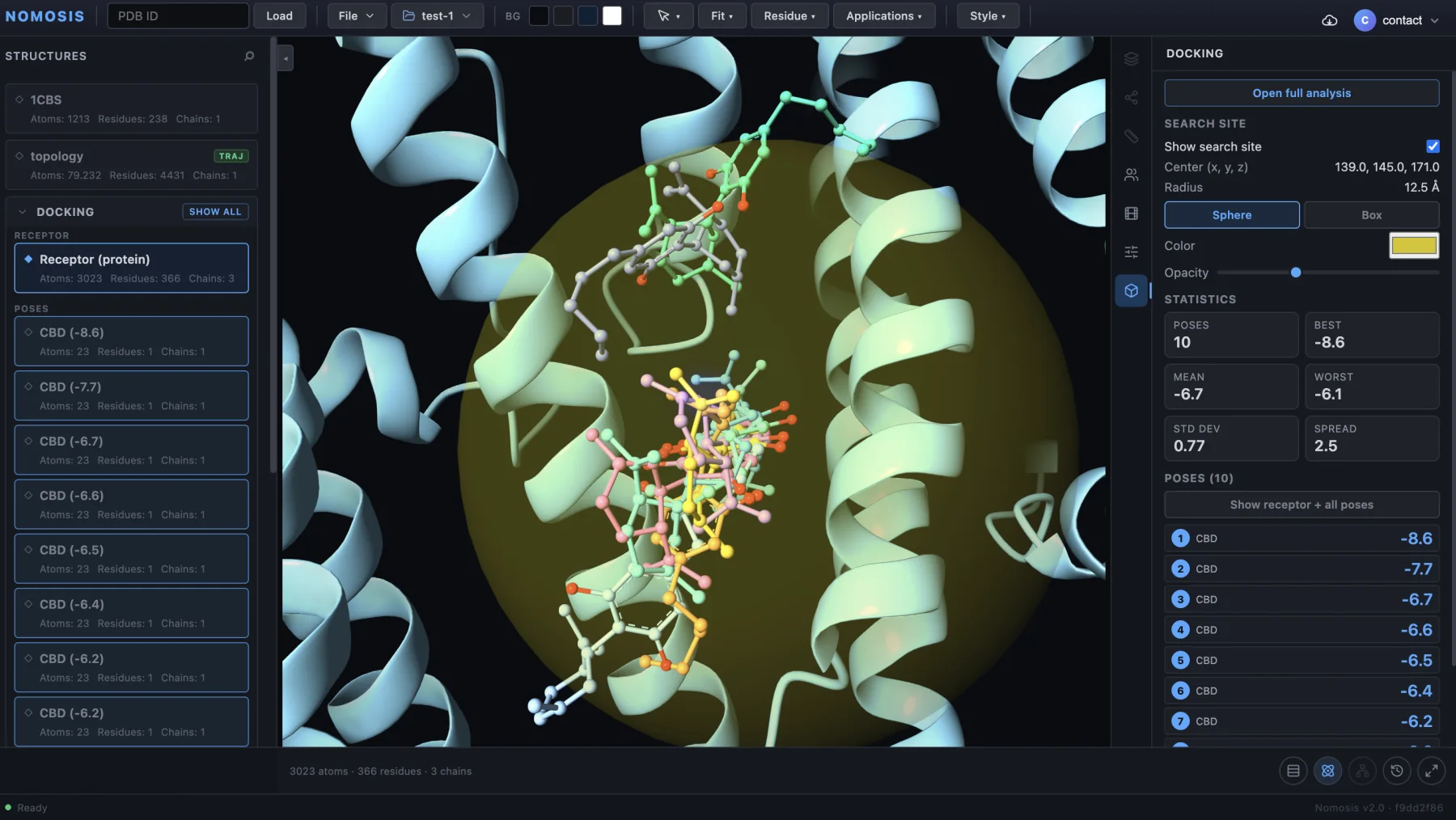
This is the first docking-analysis state: receptor and poses on the left, structural context in the center, and the quick Docking panel on the right.
Before interpreting scores, confirm that the expected receptor and pose count are present. Use the right-side panel for immediate pose inspection. Choose Open full analysis only when you are ready to open the larger workspace with Overview, Clustering, Interactions, and Pharmacophore. Continue with Docking Analysis for that complete review workflow.
Work with several loaded items
Each loaded structure maintains independent visual and analysis state. Click a row under Structures to make it active before changing Display, hierarchy, interactions, measurements, trajectory controls, or docking views.
Structure row actions
Right-click a structure row to open its context menu.
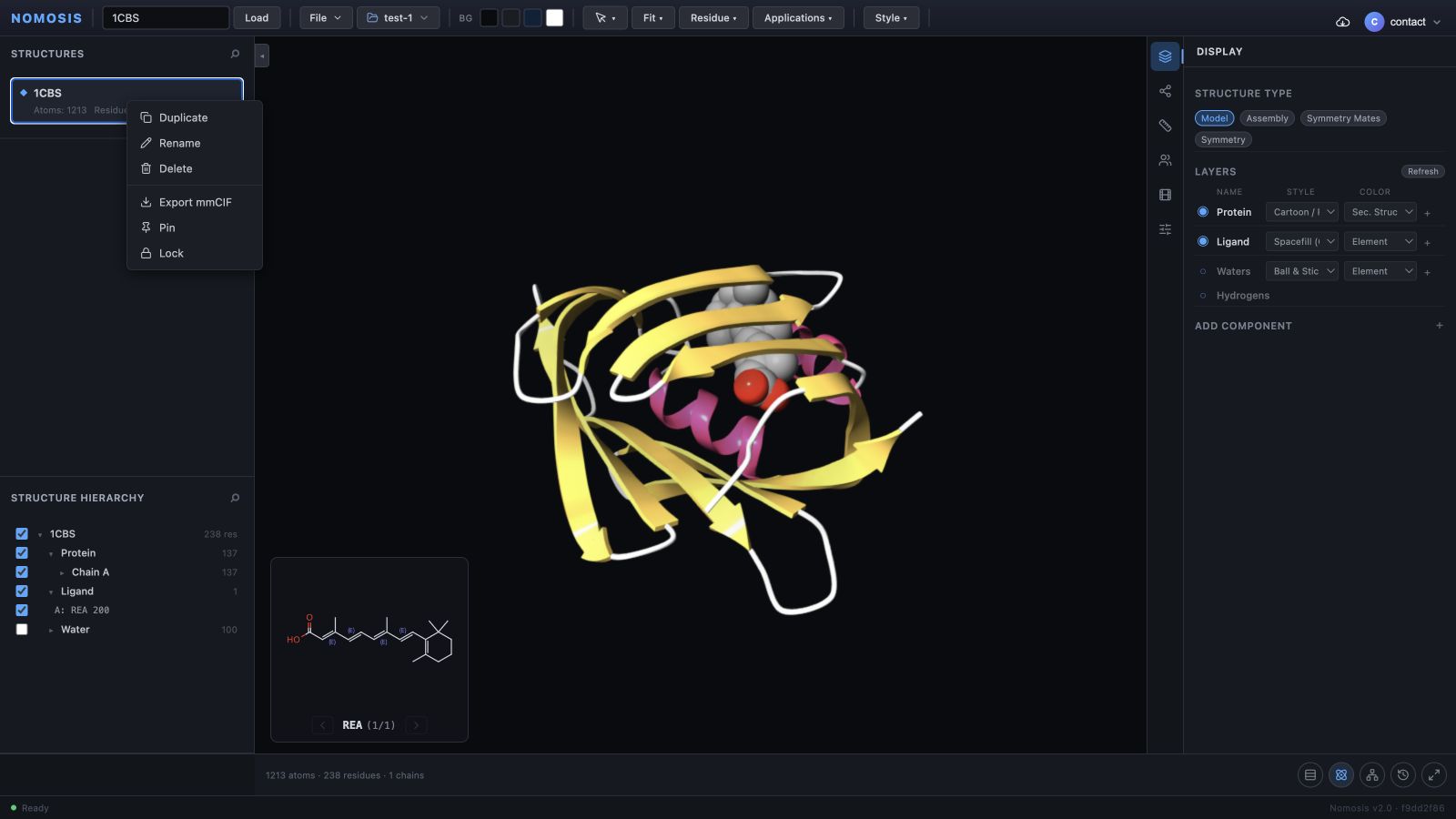
Verify the row name before applying an action. The active data determines which tools are available elsewhere in the Viewer.
| Action | Use it for | Important behavior |
|---|---|---|
| Duplicate | Create a second working copy | The duplicate can be styled independently |
| Rename | Add a clear working label | The source file or PDB record is unchanged |
| Delete | Remove an item from the current workspace | Save first if the state must be restored later |
| Export mmCIF | Download the active structure | Review the exported scope before sharing |
| Pin | Keep an important structure at the top | Useful during multi-structure reviews |
| Lock | Protect a structure from accidental changes | Unlock it before intentional edits |